Basing
- Tools
- Weld
- Fading doors & Keypads
- 3D2D Text Screen
- Shadow Remover Tool
- No Collide Tool
- Stacker Tool
- Advanced Duplicator 2
- Precision Tool
- How to build a base
Tools
Weld
How to Use
The weld tool allows you to attack props together. It is very easy to use.
To weld together props, simply hold Q and click Weld on the right of your screen on the list of tools.
Then, with your toolgun, click the first prop to start the weld and then click the second prop to finish the weld.
The 2 props are now welded together. Welding props together stops you from being able to physgun them, which is great for bases to stop you from accidentally unfreezing the props.
Another great use of the weld tool can be holding unfrozen dupes together, allowing for some fun and creative dupes such as a snake!
Fading doors & Keypads
3D2D Text Screen
How to Use
The 3D2D Text Screen is an essential tool on Cloud Gaming, used across many different roleplay situations. To spawn one, hold Q, select the 3D2D Text Screen tool from the list on the right of your screen, then click where you want the text to appear.
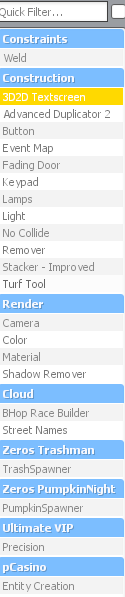
Your font size must be over 50 so that the text is readable and stays within the server rules.
Some common uses:
- Building - Put up the text "Building - KOS All Reasons". This lets players know you're still building and that killing on sight is valid.
- Music - Put up the text "Mic Spam". This allows you to play music without breaking the mic spam rules.
- Basing - Put up the text "KOS All Reasons". This gives you a valid reason to kill players who enter or interfere.
Always make sure your text screens are clear and follow the current server rules, as invalid or misleading signs can get you punished.
Shadow Remover Tool
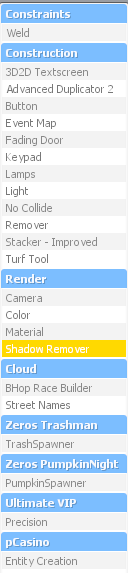
The Shadow Remover tool is used to remove the shadow from a prop. By default, placed props cast a shadow, which can make your build look dark and dull. Removing the shadow brightens the prop and gives your base a cleaner, brighter appearance.
To use it, hold Q, select the Shadow Remover tool, then left click the prop you want to affect. The shadow will be removed, and the tool can also be used to make objects appear fully bright.
No Collide Tool
How to Use
The No Collide tool lets you make props non-solid, meaning you (and other players) can walk straight through them. This is very handy while building, as it lets you line up and pass through props without getting stuck.
To use it, hold Q and select the No Collide tool. Right click a prop to no-collide it, and right click to turn its collision back on.
Note: No-collided props are only allowed during the building phase, and you must have a Building sign up. Once you're finished building and the sign is down, your props must be collidable - leaving them no-collided outside of building is against the rules.
Stacker Tool
How to Use
The Stacker tool lets you quickly duplicate a prop in a straight line, stacking copies along the direction you choose. It's a huge time-saver when building walls, floors, pillars, or anything else that needs lots of identical props lined up neatly.
Hold Q, select the Stacker tool from the list on the right, then aim at the prop you want to copy. Use the tool's options to set the count (how many copies), the direction to stack in, and any offset or rotation you need. Left click the prop to stack the copies.
Because the stacked props line up perfectly, the Stacker tool gives a much cleaner result than placing each prop by hand.
Advanced Duplicator 2
How to Use
Advanced Duplicator 2 (AdvDupe2) lets you copy an entire build and paste it back down later, keeping all the props, welds, and settings intact. You can even save your builds to file and load them on future sessions, so you never have to rebuild your base from scratch.
Hold Q and select the Advanced Duplicator 2 tool from the list on the right. Aim at your build and left click to copy it (click the main prop to set the copy point), then left click somewhere else to paste it down. Use the tool menu to save your copy to a file or load a saved one.
Note: Make sure anything you paste follows the server building rules - pasted props still count as your build and must be collidable outside of the building phase.
Precision Tool
How to Use
The Precision tool is used for exact placement and alignment of props. Instead of eyeballing position and angle, it lets you attach, rotate, and align props with precise measurements - perfect for tidy, professional-looking builds.
Hold Q and select the Precision tool from the list on the right. Use the tool menu to pick what you want to do (align, weld, rotate, position), then click your props to apply it. Because everything snaps to exact values, it's ideal for lining up fading doors, keypads, and props that need to sit flush against each other.
How to build a base
Basing: What's Not Allowed
Here on Cloud Gaming, we've got some common basing techniques that other servers allow which aren't allowed here. Below is a list of the most common things which aren't allowed. This is a quick reference - the full Properties section of the server rules always takes priority.
Base Layout & Entrances
- Crouch / jump bases and entrances
- Underground bases and maze designs
- Ramp, stair, and ladder entrances
- Traps, airlocks, puzzles, or anything designed to mislead raiders
- More than 3 turns to reach the base, or any turn sharper than 90°
- Tunnel / hallway bases (hallways longer than 2x fence03a.mdl)
- Shooting windows or defensive structures past the final entrance fading door
- Entrances that don't fit two people side by side and front-to-back
- Hacker-proof entrances
Fading Doors & Keypads
- More than 3 fading doors per base (max 2 for PD / Terrorist HQ / Bank)
- Opening fading doors with keybinds
- Any entrance fading door delay other than 0
- Fading doors smaller than storefront_template001a_bars.mdl
- Keypads past the entrance, hidden keypads, or keypads not at eye level
- Shooting windows smaller than cube05x1x05.mdl (landscape)
Visibility & Defending
- Headglitch defending
- One-way shooting / one-way props
- Very bright or very dark bases, or props that block vision / hurt the eyes
- Confusing colours
- Defending from afar or building a sniper's nest opposite your base
- Using explosives to defend a base
- Defending without being added to the door or having a visible gang sign
- Defending with banned weapons (HL2 Crossbow, Double Barrel, Minigun, Deathmachine, Blundergat, Olympia, BO2 Remington 870)
Props, Signs & Entities
- No-collided props outside the building phase
- KOS signs placed off the property
- Text screens under size 50
- "Roleplay only" building signs on bases with money-making entities or weapons
- Blocking server entities such as NPCs or dumpsters
- Large buildings in or around spawn / the fountain